it's (in)officially autumn season y'all! 🧡


HTML Tags
Written by Danny
07.06.2025
Recommended With
Table of Contents
1 Intro
Below is a quick reference guide for the most popular HTML tags used to structure web pages, format text, and add interactive features. While this isn't a massive encyclopedia of every tag in existence, it covers the core elements you will use in almost every project!
2 Document setup
These setup tags work behind the scenes to help browsers load styles, titles, and scripts for your page.
<html>
The root container that wraps everything on your web page.
<html lang="en">...</html>
<head>
Holds your site title, search engine info, and links to your style or script files.
<head><title>My Site</title></head>
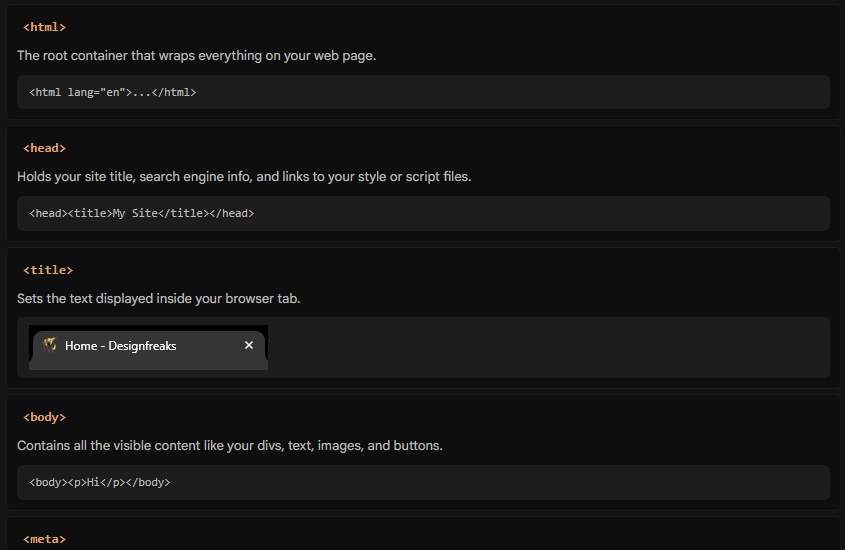
<title>
Sets the text displayed inside your browser tab.

<body>
Contains all the visible content like your divs, text, images, and buttons.
<body><p>Hi</p></body>
<meta>
Sets hidden details for your page, like mobile screen fitting, character encoding, or search descriptions.
<meta charset="UTF-8">
<link>
Attaches outside files to your page, such as your CSS stylesheet or site icons.
<link rel="stylesheet" href="style.css">
<style>
Lets you write custom CSS rules directly inside your page file.
<style>body { color: red; }</style>
3 Headings & Paragraphs
Use these elements to add written content and break your page into clean sections.
<h1> to <h6>
Section titles. Use <h1> for main titles and <h2> through <h6> for subheadings.
h1 Title Preview
h2 Title Preview
h3 Title Preview
h4 Title Preview
h5 Title Preview
h6 Title Preview
<p>
Standard text blocks for your paragraphs.
Hello! This is a typical paragraph block.
<br>
Forces a line break without starting a whole new paragraph block.
Line 1
Line 2
Line 2
<hr>
Draws a horizontal dividing line to separate content.
Text here.
More text, seperated with a line from the other.
More text, seperated with a line from the other.
<blockquote>
Indents text to highlight longer quotes cleanly.
"This is a quote preview."
4 Lists
Organize information into lists!
<ul>
Creates a bulleted list for items where order does not matter.
- First bullet point
- Second bullet point
<ol>
Creates a numbered list for ordered steps or rankings.
- First step
- Second step
<li>
Defines an individual row entry inside bulleted or numbered lists.
<dl>, <dt>, <dd>
A description list structure, perfect for term definitions.
- HTML
- The standard markup language for web pages.
5 Text formatting
Apply these tags inside paragraphs to change how specific words look or add links.
<strong> & <b>
Makes text bold.
Important bold text
<em> & <i>
Italicizes text.
Stylistic italic text
<u>
Underlines text.
Underlined text preview
<s>
Draws a line through text to show deleted or outdated information.
<mark>
Applies a bright highlight background behind specific text.
Highlighted text preview
<small>
Makes text smaller for fine print, disclaimers, or side notes.
Fine print disclaimer text
<sub> & <sup>
Positions text below or above the line for chemical formulas or math expressions.
Subscript: H2O | Superscript: x2
<code>
Styles inline text with a monospaced font to indicate code snippets.
x = 10
<span>
A neutral inline container used to target specific text for custom CSS styling.
Custom inline span text
6 Media
Embed graphics, audio clips, and video players.
<img src="example.jpg" alt="Description">
Displays an image on your page. The alt tag is optional and describes your image, in case it fails to load.
<figure> <img src="image.jpg"> <figcaption>Caption</figcaption> </figure>
Wraps an image together with a text caption underneath it.
<audio controls src="song.mp3"></audio>
Displays a built-in player for audio files.
<video controls src="video.mp4"></video>
Displays a video player on your page.
7 Forms and input fields
Add input controls so your visitors can type messages, select options, and submit data.
<form action="/submit" method="POST"></form>
The main wrapper that holds your inputs together and sends their data to a server.
<label for="name">Name</label>
Creates text tied to an input field, so clicking the text focuses the input box.
<input type="text" placeholder="...">
A single-line field for entering plain text like names, emails, or search terms.
<input type="checkbox">
A square box for toggling options on or off, allowing multiple selections.
<input type="radio" name="group">
A round selection button where picking one option unselects the others in the group.
<textarea placeholder="..."></textarea>
A larger multi-line text box for longer texts or messages.
<select> <option>Item</option> </select>
Creates a drop-down menu for visitors to pick one choice from a list.
<button type="submit">Submit</button>
A clickable button used to send form entries or run scripts.
8 Interactive
Native HTML elements that support dynamic browser interactions without needing heavy scripts.
<details> <summary>Title</summary> Content </details>
Builds a simple clickable dropdown box to show or hide extra text.
Click to view details
Surprise! Here is the hidden content.
<button onclick="box.showModal()">Open</button>
<dialog id="box">
Your modal text here!
<button onclick="box.close()">Close</button>
</dialog>
<dialog id="box">
Your modal text here!
<button onclick="box.close()">Close</button>
</dialog>
Creates a native popup window with open and close buttons.
<progress value="70" max="100"></progress>
Displays a loading bar to show how far along a task or download is.
9 HTML5 containers
Use layout tags to group the main areas of your page. They replace generic div tags so browsers and search engines easily understand your site structure, though you will still use classes and IDs alongside them for styling!
<header>
The top area of your page or article, usually holding your logo, site title, or main banner.
<nav>
A box meant specifically for your main menu and navigation links.
<main>
Holds the primary content of the page, excluding stuff like menus or footers.
<section>
Groups related content together, almost like a chapter in a book.
<article>
A self-contained piece of content that makes sense on its own, like a blog post or news story.
<aside>
Content placed off to the side, like a sidebar.
<footer>
The bottom section of your page for copyright notes, contact info, or extra links.